Funding Your Account: Deposit, Convert, and Transfer to the Funding Wallet in 3 Steps
After KYC, move your funds into Bitfinex's Funding wallet to lend. Covers depositing USDT, converting to USD, Funding vs. Exchange wallets, and the transfer.

After completing KYC identity verification (see the Bitfinex KYC Verification Guide), the next step is to transfer funds into Bitfinex and move them into the Funding wallet to start lending. Bitfinex's lending feature only reads the balance in the Funding wallet — funds sitting in other wallets cannot be lent out. This article walks through the full process of transferring USDT into Bitfinex, converting it to USD, and transferring it into the Funding wallet.
Deposit: Transfer USDT into Bitfinex
If you already hold USDT on another exchange or wallet, you can transfer it directly to Bitfinex. Below are the key points to watch for during the transfer.
Before you transfer: choosing the wrong network may mean losing your funds
Irreversible warning
Crypto transfers rely on blockchain networks to move funds. Bitfinex supports USDT deposits on several networks; common ones are TRC-20 (Tron), ERC-20 (Ethereum), and Solana. See the official list for all of them.
The network selected on the sending side must exactly match the network selected on the Bitfinex receiving side. If one side selects TRC-20 and the other selects ERC-20, Bitfinex warns that the funds may be lost and cannot be recovered.
Mandatory: test with a small amount (5–10 USDT) first, confirm it arrives with the correct amount, then transfer larger sums.
Step 1: Get Bitfinex's USDT deposit address
Log in to Bitfinex, find Deposit in the top navigation bar, select USDT as the currency, then choose a network (for example TRC-20, ERC-20, or Solana) and the wallet to deposit into. Once selected, the screen will display the deposit address and QR code. You can deposit straight into the Funding wallet, so the funds are ready to lend without a transfer; if you pick the Exchange wallet instead, simply transfer them later.
Step 2: Select the same network on the sending side and submit
Go to the withdrawal page of the exchange or wallet where you hold USDT, select USDT as the currency, and make sure the network field matches exactly the one chosen in Step 1. Then paste in the Bitfinex deposit address and submit. Always copy and paste the address — never type it manually.
Step 3: Wait for deposit confirmation
Crypto transfers require blockchain confirmation; how long it takes depends on the network and how congested it is. Once confirmed, the funds appear in the wallet you chose in Step 1. If you chose the Exchange wallet, transfer them to the Funding wallet next.
Fees: the transfer fee is charged by the exchange or wallet you send from, and it varies by platform and network. Check the amount shown on the sending side's withdrawal page.
Converting USDT to USD (only needed if you want to lend USD)
Bitfinex has two separate lending pools: USDT lending and USD lending (for which one to choose, see USDT vs. USD Lending). Deposited USDT stays as USDT — to enter the USD lending pool, you first need to convert it on the trading page. If you plan to lend only USDT, you can skip this section and go straight to the next one.
Step 4: Go to the USDT/USD trading pair
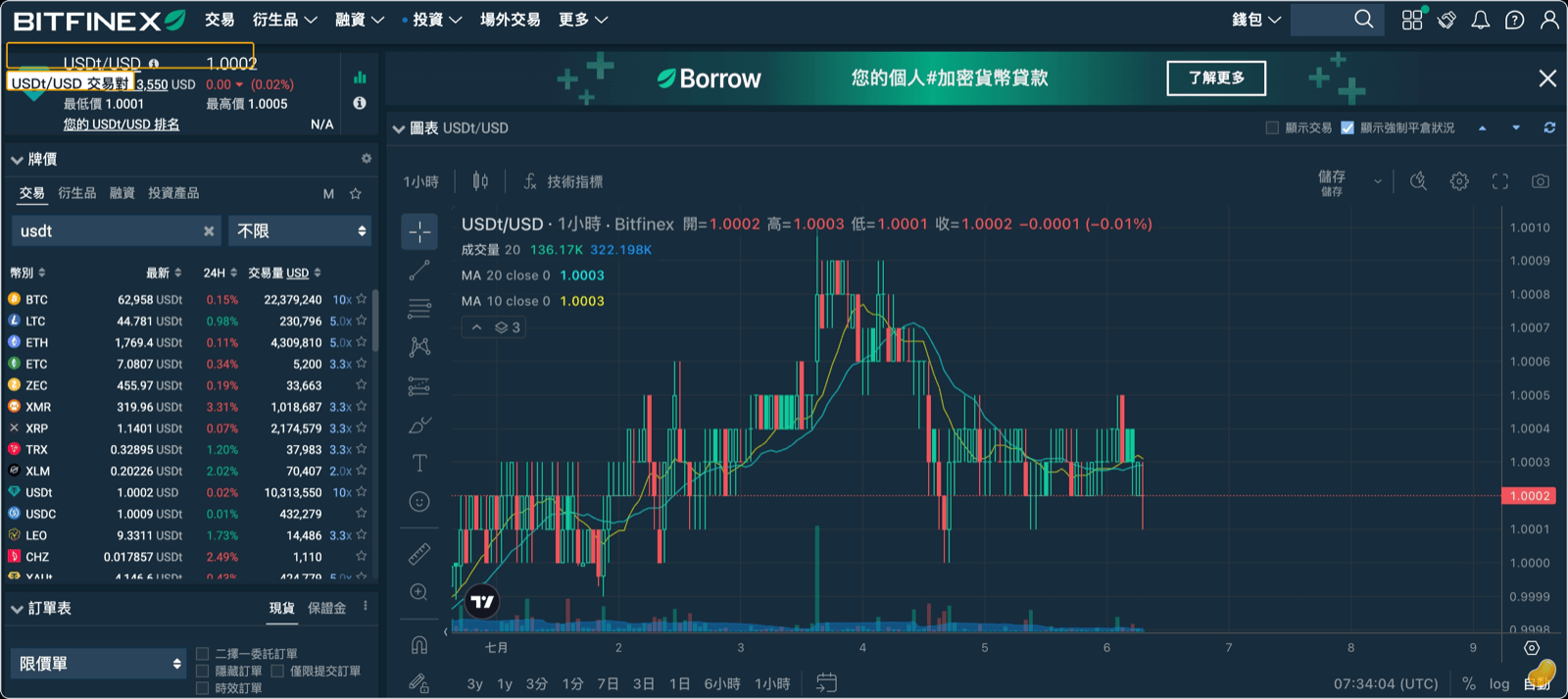
Search for USDT/USD on the Bitfinex trading page and open the order interface for this pair.
Step 5: Place a limit order
Select Sell USDT as the order direction, choose Limit as the order type, set a price close to the current market rate (e.g., 0.9998 or 0.9999), enter the amount, and submit. Limit orders are Maker orders, which carry lower fees than instantly matched Taker orders. Once filled, the USD will land in the Exchange wallet.
If the order doesn't fill after a while, you can adjust the price slightly closer to the market rate.
Transferring to the Funding Wallet
Step 6: Understand the three wallets
Assets on a Bitfinex account are held across three wallets:
- Exchange wallet: Used for spot trading. If you did not choose the Funding wallet when depositing, your funds are here.
- Margin: Used for margin trading.
- Funding: Used for earning interest through lending — lending funds must be here, or lending won't be possible.
The two most commonly confused are the Exchange and Funding wallets:
| Comparison | Exchange Wallet | Funding Wallet |
|---|---|---|
| Purpose | Trading | Lending |
| Can lend? | ✗ (orders won't post) | ✓ (lending only works here) |
Step 7: Execute the transfer
On the Wallets page, click Transfer, select Exchange as the source, Funding as the destination, choose USD (or USDT, depending on which lending pool you're targeting) as the currency, enter the amount, and confirm. Transfers between wallets are free and take a few seconds (see the official guide).
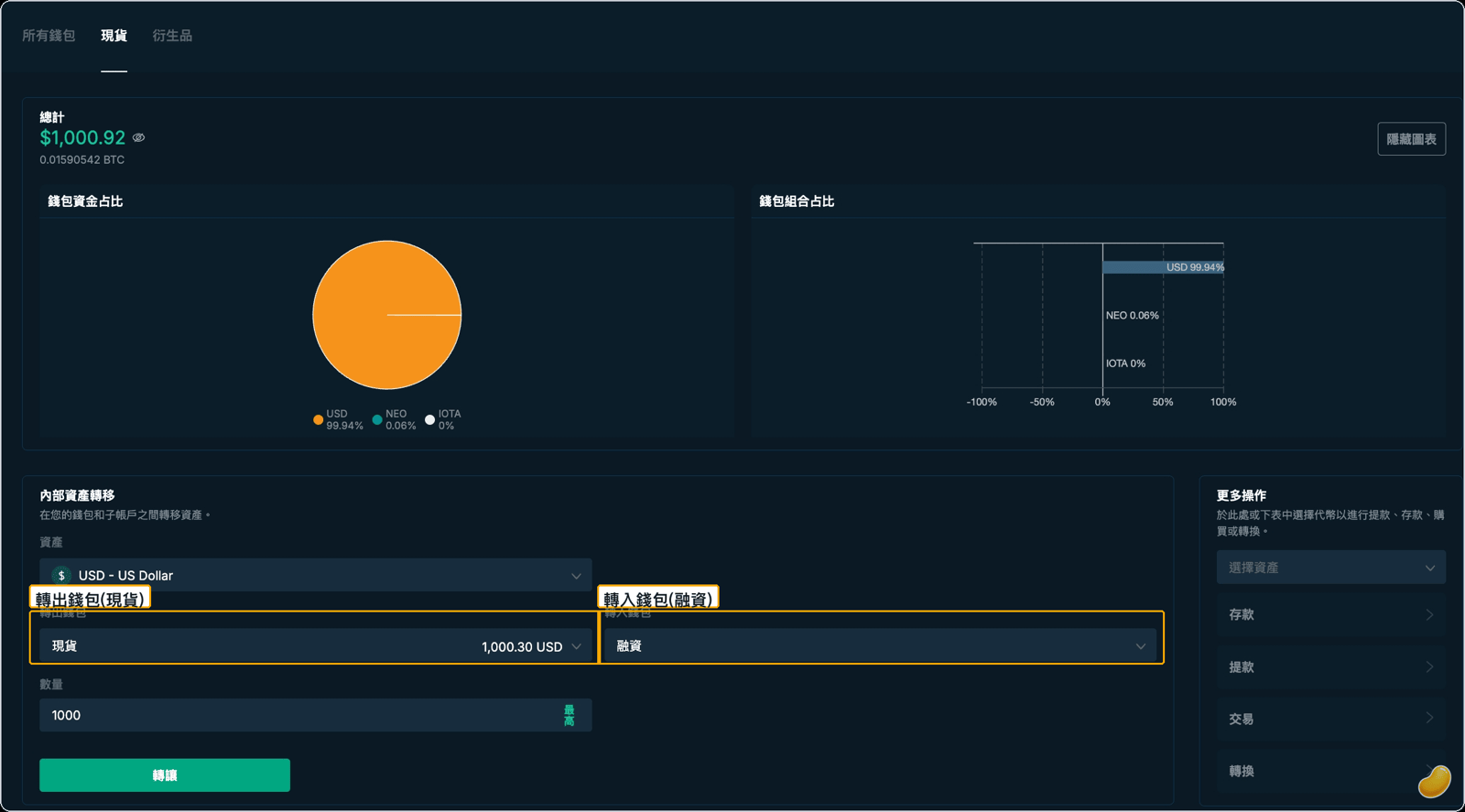
The most common mistake: forgetting to transfer after depositing, then going straight to the lending feature and finding no available balance. If funds aren't in the Funding wallet, lending isn't possible.
Your funds won't disappear if they're in the wrong wallet — they just won't be picked up by your lending bot, and orders won't post. You might think the tool is broken. The first thing to check is always "are my funds in the Funding wallet?"
Step 8: Confirm the Funding wallet balance
After transferring, check the Funding wallet to confirm the USD balance has arrived. Each Bitfinex lending offer must be at least 150 USD or the equivalent in another currency (see the official explanation) — confirm the balance meets this before proceeding.
Appendix: Withdrawal Whitelist and the 5-Day Withdrawal Hold
If you plan to withdraw funds from Bitfinex in the future, the withdrawal whitelist feature lets you restrict withdrawals to specific addresses only. According to Bitfinex's official guide, changing an existing whitelisted address, or re-enabling withdrawals for a currency you had disabled, puts a 5-day hold on withdrawals for all currencies. Disabling withdrawals for a currency, or adding an address for a currency whose withdrawals are enabled and not yet whitelisted, does not trigger the hold. If you need to change a withdrawal address, do it well before you need to withdraw.
Quick FAQ
| Issue | Cause | Solution |
|---|---|---|
| Funds transferred but not showing on Bitfinex | Still waiting on block confirmation, or the funds went to a different wallet | Wait a little and check both the Exchange and Funding wallets |
| USDT visible but can't find USD lending option | USDT hasn't been converted to USD yet | Complete Steps 4–5 in the conversion section |
| Funding wallet is empty | Exchange wallet funds haven't been transferred | Complete Step 7 in the transfer section |
| Lending page shows 0 available balance after transfer | Amount below the 150 USD minimum per offer | Deposit more or wait to accumulate funds |
| Discovered withdrawals are locked for 5 days when trying to withdraw | A whitelisted address was just changed, or a disabled currency was re-enabled | Wait for the 5-day hold to end |
For the complete Bitfinex lending process, see Complete Bitfinex Lending Guide.
Disclaimer: This article is for informational purposes only and does not constitute investment, financial, or tax advice, nor a solicitation. Cryptocurrency and lending involve risk; returns fluctuate and are not guaranteed, and principal may be lost. Lending rates are determined by market supply and demand; past performance does not indicate future results. Please assess your own risk tolerance and consult a professional for tax matters.
